
What is Client Side Protect and why do I need it?
A growing number of visitors are using block lists and ad block extensions that attempt to circumvent a publisher's right to access control. Not only do these particular extensions block ads, they block a publisher's attempts to engage with visitors.
These ad block extensions block offers, such as subscriptions, as well as messages that attempt to manage a visitor’s access to the site. Fortunately, Admiral’s Client Side Protect feature restores a publisher’s right to require a value exchange to consume their content.
Client Side Protect alerts these particular visitors with a customizable message that tells them they have broken the normal operation of the website, and asks them to disable their ad blocker.
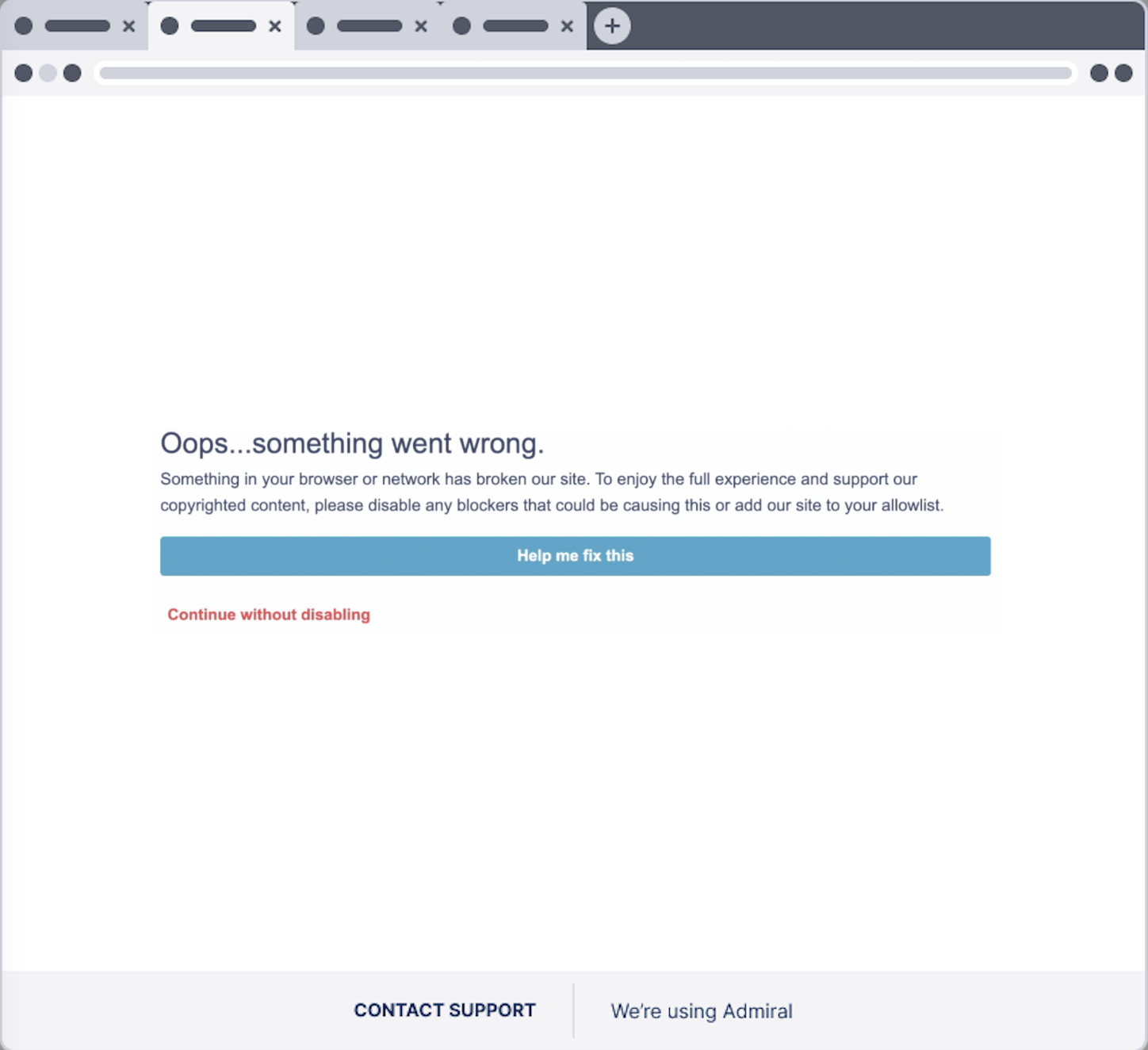
How does it work?
Admiral's Client Side Protect is built in to the install tag so no network calls are required for it to function.
NOTE: If you already have Admiral installed and enable the Client Side Protect you will need to update your install tag.
How do I start using Client Side Protect?
First, click on the Install tab in your Admiral dashboard menu and click “Enable Client Side Protect”.

Click on Design to update the design of your Client Side Protect message.
NOTE: Unlike other Admiral messages, your Client Side Protect message is built into the install script. This means you will first make your changes to the design, and then copy and install the updated tag on your site.
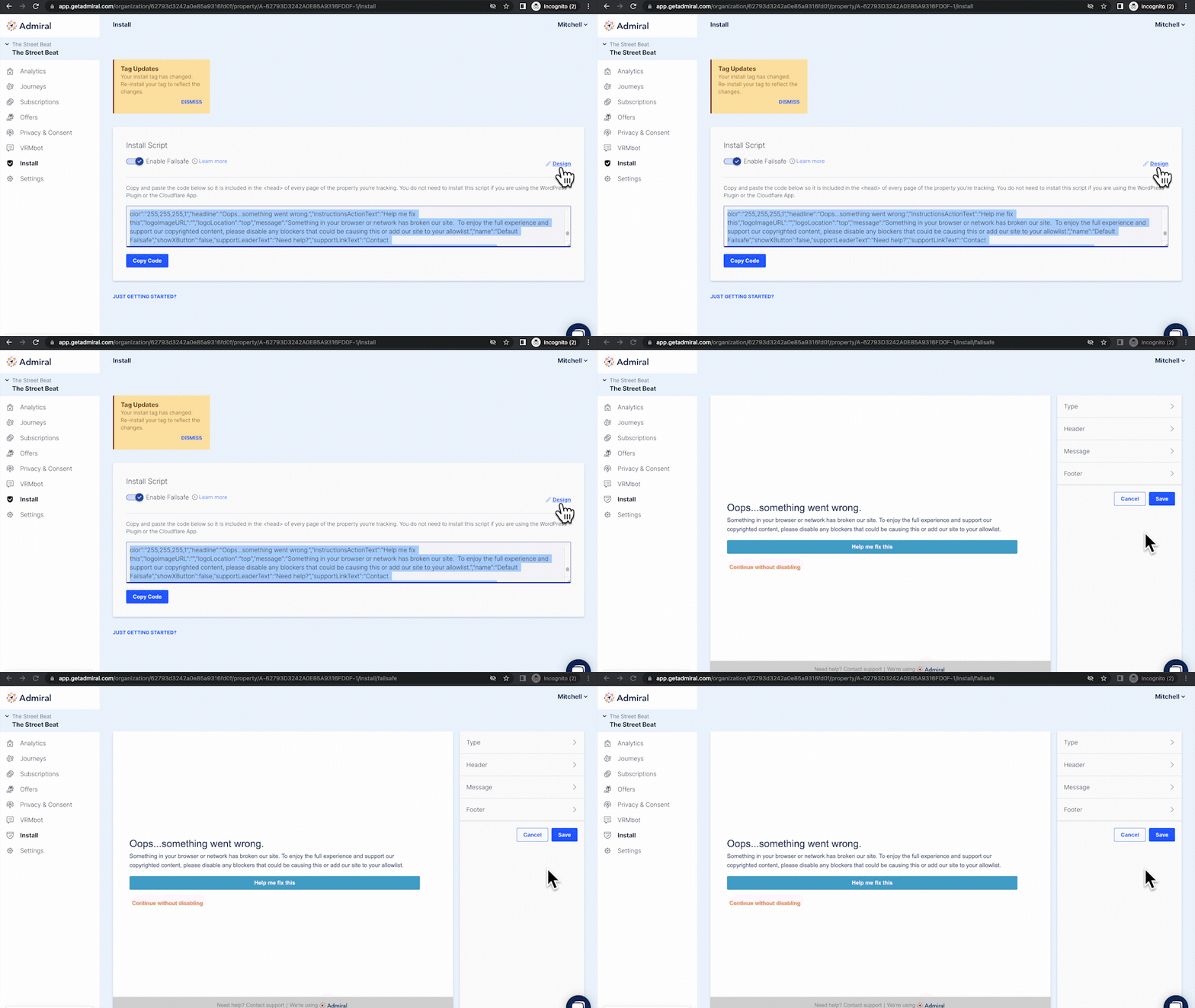
Click on the "Type" tab to choose between a Soft or Gated engage.
A Soft engage means a visitor can click out of the engage and continue viewing content.
A Gated engage means a visitor must disable their ad block extension (or specific browser settings) to continue viewing content.

Click on the "Header" tab to add your logo and position the logo. You have options as to where you would like to place the logo in relation to the copy: top, bottom, left, right.
-gif.gif?width=670&name=gif_fs_header3_AdobeExpress%20(1)-gif.gif)
Click the "Message" tab to change the headline and body message, as well as the button text. You can also select the color of the copy and the button.

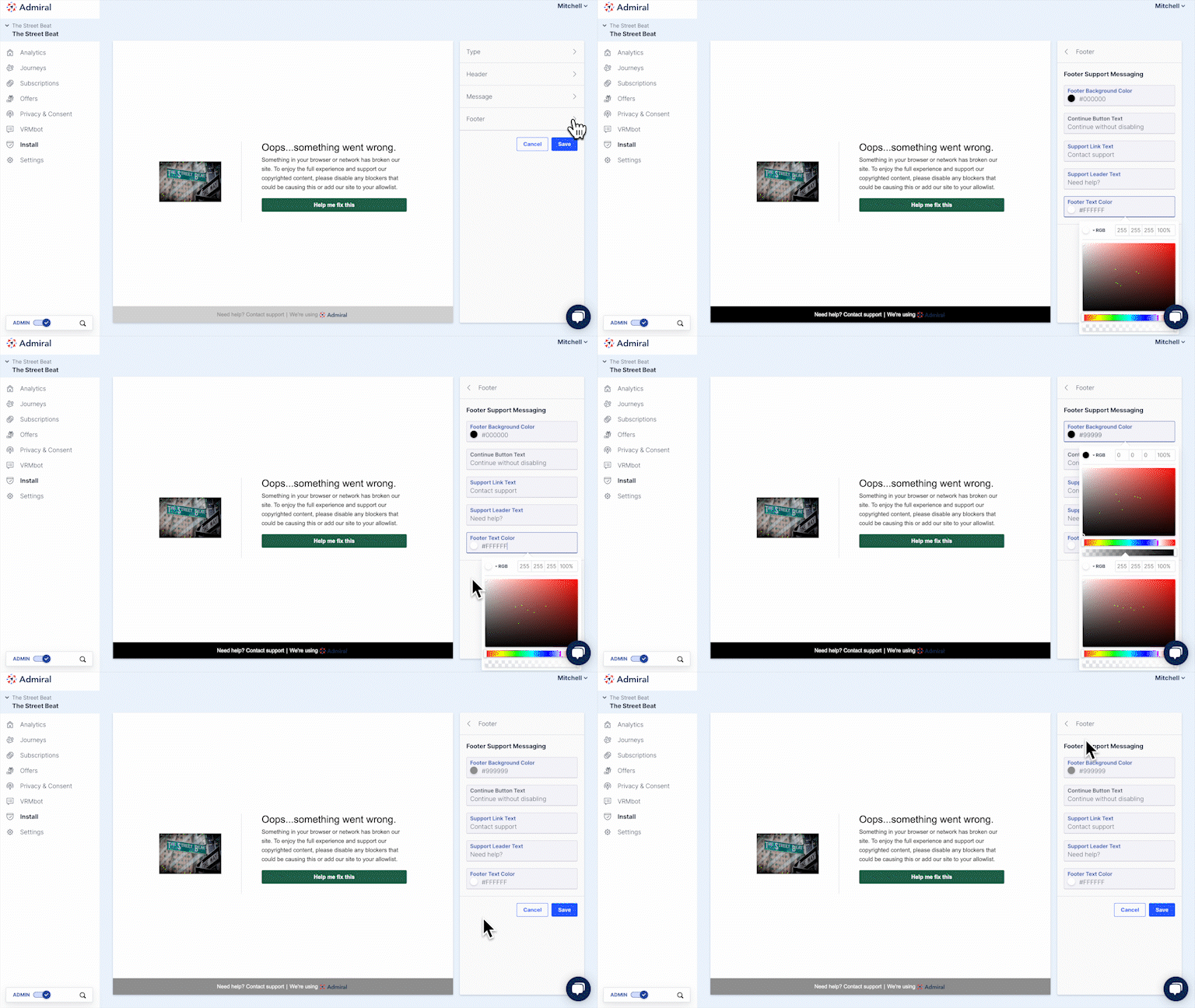
Click the "Footer" tab to edit the footer of the Client Side Protect message. You can edit the text and the colors.
Now that you have edited the design of the Client Side Protect message copy the install tag by clicking "Copy Code."
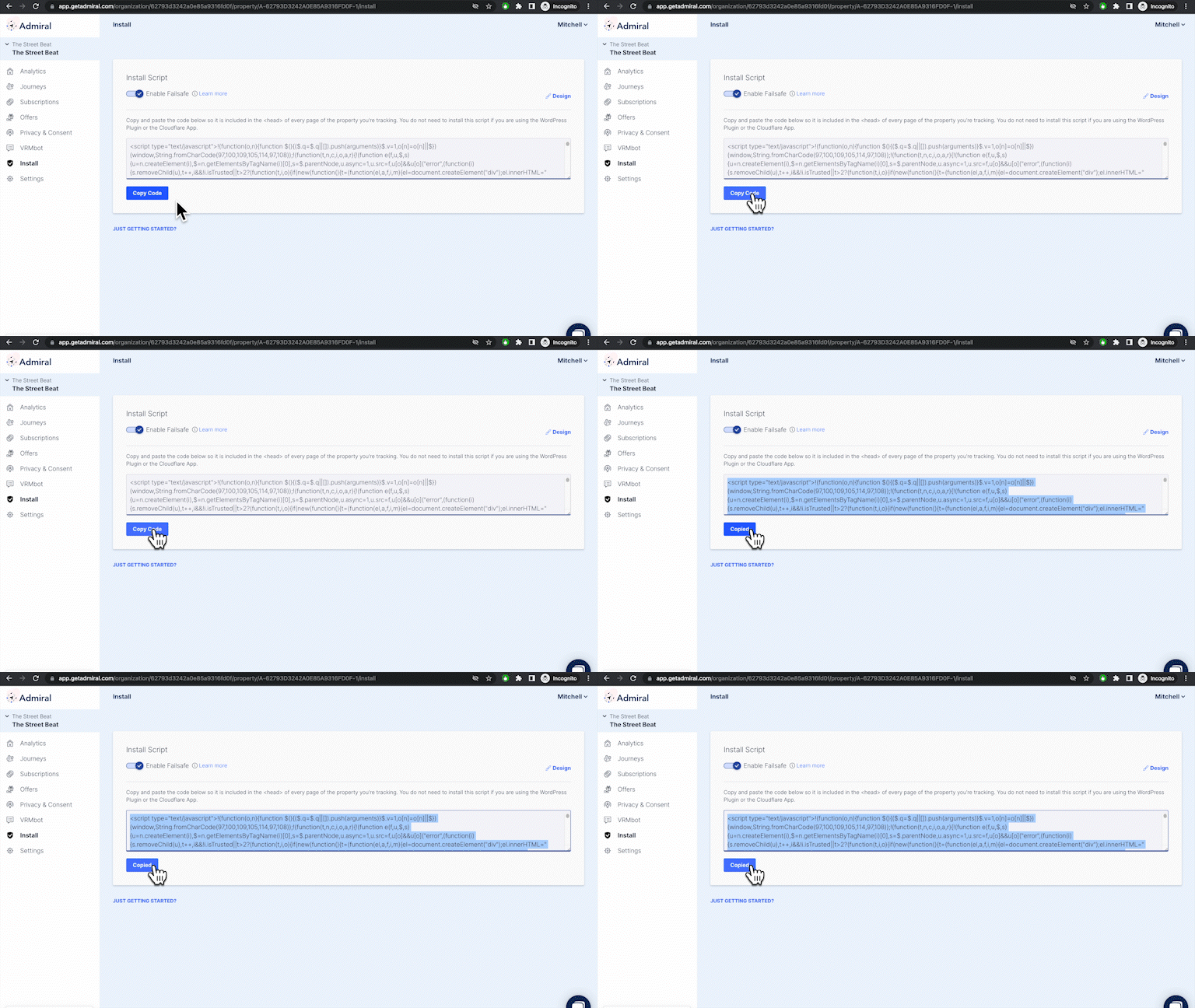
Install the updated tag on your website by including it in the <head> of every page of the property you're tracking.
Once the updated tag is installed, these particular visitors will be engaged with your Client Side Protect message.
-gif.gif?width=670&name=GIF_fs_visitor_view_AdobeExpress%20(1)-gif.gif)
If you have any questions or would like assistance, please reach out to customerlove@getadmiral.com.