
Custom Vendors
TCF v1.1 allowed publishers to configure custom vendors who were not part of the TCF framework, but there were no framework guidelines describing how it could be done in a compliant way since non-framework vendors could not be displayed alongside framework vendors. Many publishers ended up implementing custom vendors as custom purposes, which worked, but was not ideal.
TCF v2.0 is much more clear about custom vendors and describes how they can be included in a TCF v2.0 compliant UI.
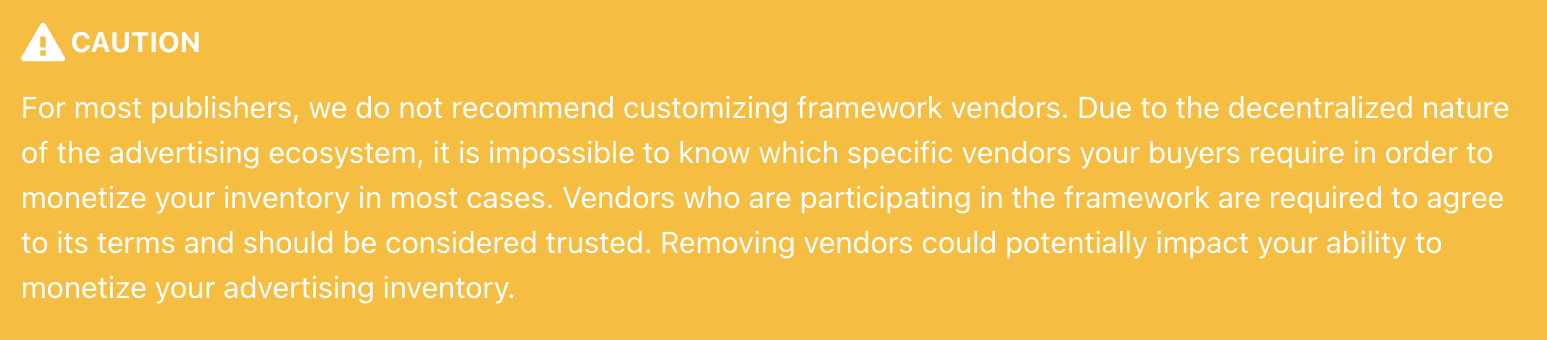
Admiral allows customizing custom vendor settings on your property in the relevant CMP client configuration screen. We also allow publishers to configure which framework vendors will be shown and consented to by users.
Step by Step Instructions
1) Navigate to your Journeys in the Admiral app and select the Consent Journey you wish to Edit.
2) Select Edit on the Journey and open the Vendors sub-header. Ensure the Vendors Enabled toggle is ON and input the respective fields (Vendor Name, Vendor Privacy Policy URL, Consent Purposes, Legitimate Interest Purposes) and Add Vendor.

3) Once Added, you will see your Custom Vendor listed and clicking on the Vendor will open the respective Consent Settings.
You may check customVendor consents via API using the below.
If you have any questions or would like assistance, please reach out to customerlove@getadmiral.com.